Package Manager - Your Personal Delivery Dashboard

Parcel Manager is an innovative tool inside TrackTrace.Delivery that helps you keep all your shipments under control. Instead of checking dozens of tracking pages, you can manage every parcel from one clean, centralized dashboard. This service caters to everyone who regularly shops or ships. Whether you're an individual excitedly waiting for your online orders or a small e-commerce seller juggling daily deliveries, we want to make your life a little easier. Our goal is straightforward: to help you save time, cut through the chaos, and make tracking your packages a breeze.

Why You Need a Track & Trace Parcel Manager

It is the optimal way to track the delivery process from sender to recipient. Managing multiple parcels can be a real challenge. With so many tracking numbers, parcels, and couriers, it's easy to get confused or make mistakes. Our universal parcel manager will help you gather all the data in one place and fully manage your shipments. You can easily sort parcels, mark them as favorites, archive those you no longer need, and quickly see which parcels are currently in transit or have been delivered.

Benefits for Customers

  • All Parcels in One Place - Keep all your parcels organized in one convenient spot! You can easily add shipments from any postal or courier service and get real-time updates, all in a single list. This convenience will make you feel more organized and efficient;
  • Clear Interface - The user-friendly interface features clear visuals and straightforward controls, making it easy to manage even the most extensive delivery lists. You will feel comfortable and at ease while using the tool;
  • Auto Sync Parcels - Easily keep track of your parcels across all your devices! Sign in once, and you can access your parcel list anytime, whether you're on your phone, tablet or desktop;
  • Automatic Courier Detector - We only need the tracking number, and the tool can quickly identify the postal service. Easily find out which carrier delivered your package!;
  • Archiving Parcels - Keep your packages for later reference;
  • Favorite Parcels - Keep track of important shipments by favoriting them.

Parcel Manager is more than just a tracking tool. It's an online productivity app designed for those who frequently ship orders or shop. It lets you organize and easily track your deliveries, so you always know exactly where your packages are.

The Parcel Manager FAQs

Parcel Manager Frequently Asked Questions: Here, you will find answers to common questions regarding the Parcel Manager interface. We also provide tips on enhancing e-commerce productivity and effectively managing large volumes of parcels and shipments with the Track & Trace Parcel Manager.
  • How do I Add a Parcel in Parcel Manager?

    Add New Parcel in Parcel manager

    In the top control panel, you'll see a yellow round button with a plus icon in the center. Click it to add a new parcel. In the pop-up form, enter the tracking number and confirm the addition. The parcel will appear at the top of your list of all your parcels, and carriers will be automatically identified and tracked.

    Alternatively, if you're in another section of the website, enter your parcel number in the tracking form and click the TRACK button. The website will automatically redirect to the Parcel Manager, where you need to confirm adding the new parcel.

  • Can I Sort my Parcel List?

    Sort Parcels In Package Manager

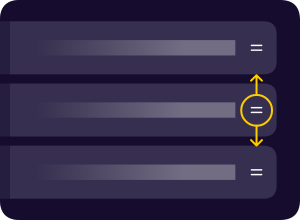
    Yes, we've implemented this feature. In the top control panel, you'll find parcel management buttons, such as a pen icon. Click it to enter editing mode. Your list will visually change, and drag-and-drop buttons (two horizontal lines) will appear on the right side of each parcel. Hold it and move the parcel up or down the list as needed. To exit parcel editing mode, click the pen icon again to return to the mode you were in before editing.

  • How do I Delete Multiple Parcels?

    Delete Parcels In Package Manager

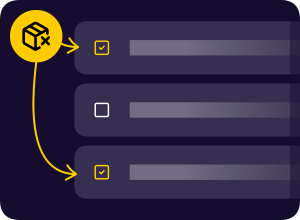
    Switch to the parcel editing mode by clicking the pen-shaped button in the top bar. You'll see a checkbox to the left of each parcel. Select the parcels you want to delete by checking their boxes. In the top bar, in editing mode, you'll see round yellow action buttons. Click the button with the parcel icon featuring a delete cross, then confirm the deletion. That's it, you've deleted multiple parcels in just two clicks.

    If you want to delete all parcels, select them all with a single button in the top bar, then confirm the deletion.

    We recommend archiving your parcels rather than deleting them, in case you need their details later.

  • How Can I Transfer my Parcel List to Another Device?

    Sync Parcel in Parcel manager

    To sync parcels between devices, you need to log in to the website. Parcel Manager will automatically update your list on the new device. Even if you add or delete a parcel on the new device, the new list will also sync on the original device.

  • Can I Highlight a Parcel From the List so it Stands out From the Others?

    Favorite Parcels In Package Manager

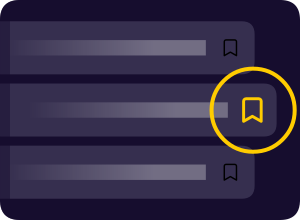
    Yes, you can now add parcels to your favorites list. You can see a flag icon on the right side of each parcel. Clicking it highlights it, allowing you to distinguish critical shipments from the entire list.

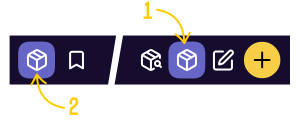
    You can also filter the entire list of parcels to show only those marked as favorites. To do this, click the parcel icon in the top bar, then select the button with the flag icon.

  • What Does the Icon on the Left Side of Each Parcel Mean?

    Parcels Sttauses

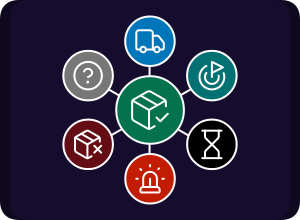
    We visually display the parcel's current status and create intuitive, universal icons so you can quickly understand its status. Below is a detailed list of all the possible parcel statuses:

    • Not Found (We couldn't find the carrier for your parcel, or the courier doesn't have any information about your parcel);
    • In Transit (This status covers a wide range of events, but you only need to know that your parcel is on its way to the recipient);
    • Parcel Ready for Pickup (The parcel has arrived at its final destination and is ready for pickup);
    • Delivered (It's very simple - you received the parcel, or the carrier says it was delivered);
    • Not Delivered (There's a problem with the parcel);
    • Alert (Important message from the carrier; you may need to take action to receive your parcel);
    • Expired (Your parcel has expired because it has been over 2 months).
  • How do I Find the Right Parcel From an Extensive List?

    In the top panel, select the parcel icon with a magnifying glass, and a search field will appear on the left. Start entering the parcel tracking number, and the parcel manager will filter the list according to your search query.

    The search works in both archived and favorite parcel lists.

    Tip! You can search not only by tracking number but also by the note in your parcel. Tag your parcels to find them quickly. For example, you could tag a parcel from Amazon as "Blue t-shirt with a cat from Amazon." If you enter the words "cat" or "Amazon," your parcel will appear first in the search results.

  • How do I Move my Received Parcels to the Parcel Archive?

    Archive Parcels In Package Manager

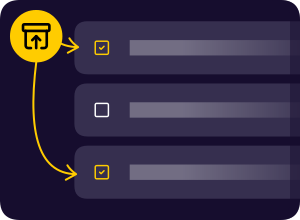
    In edit mode (the parcel icon with a pen) for active parcels, select the parcels you want to move. Click the yellow button with the archive box icon with an upward arrow, confirm the move, and your parcels are now archived.

    It's important to understand that you can't track your archived parcels, but you can view the latest tracking data.

  • My Parcels Have Disappeared. I Can't Find Them.

    Active Parcel List in Parcel manager

    This may happen if you're viewing your favorite parcels or archived parcels. To view all active parcels, click the mode icon between the search and edit icons and select "All Active Parcels".

  • How do I View Detailed Tracking Information for a Parcel?

    In the list of active parcels, click the tracking number to view detailed information about the parcel:

    • Current status;
    • Country of departure;
    • Country of destination;
    • Your Note;
    • Events History;
    • List of Couriers.

    In the carrier list, you'll find contact information for your carriers and additional information from each postal service or logistic company:

    • Estimated Delivery Time;
    • Sender;
    • Recipient;
    • Description; 
    • Delivery Type;
    • Parcel Size; 
    • Parcel Weight;
    • Reference Tracking Numbers; 
    • Country of departure;
    • Country of destination.

    Please note that additional information may vary and depend on the courier.

  • Can I Refresh My Parcel Tracking Data?

    Refresh Parcel

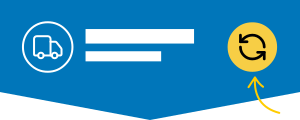
    Parcel Manager automatically updates tracking data every 6 hours. To do this, visit the Parcel Manager on our website. If you need an extra refresh, you can click the yellow "Refresh" button in the parcel status detail header.

  • The Parcel Manager Couldn't Find a Courier for my Package. What Should I do?

    It may happen if we can't determine the courier based on the tracking number format. If you know the exact delivery service for your package, you can select it manually. To do this, select the parcel, go to the Couriers Information section, and click "Add Another Courier". Select your service from the list of supported couriers. Confirm the addition, and we will track your package.

  • Tracking Data is displayed in Chinese Characters. How Can I Translate the Tracking Information?

    Translate Tracking Events in Parcel manager

    We've implemented this improvement, and in the parcel management panel below, you can select the language you'd like to use to translate the tracking data. The Parcel Manager will save your selection and automatically translate all your subsequent parcels. To view the original data, select "Original".